
Find your project files
In Check your first response, we created a counter, added one to it, and tried adding zero. Counter rejected zero and kept the value at one. We can trace that behavior through the graphical IDE and the code that decides what happens.
Use the unchanged Counter starter from Create a project. Read the excerpts alongside your own files.
The application and its feature
Section titled “The application and its feature”Open your project directory in your editor. Its root is the directory containing neo.json. Two source files describe how Counter is put together:
neo.jsonsrc/ App.hs Starter/Counter/ Feature.hsThese are actual starter paths, even if you chose a different project name. In src/App.hs, appEventModel assembles the application. Among its settings are the HTTP transport and the features to include:
EventModel.withTransport WebTransport.serverEventModel.features do counterFlowThe counterFlow definition in Feature.hs groups the slices under the feature Counter flow and chapter Manage counters. The Increment a counter slice declares which event the command can produce:
command @IncrementCounter do produces @CounterIncremented.EventThe condition for accepting the command lives in Commands/IncrementCounter.hs.
The model in the graphical IDE
Section titled “The model in the graphical IDE”Neo’s graphical IDE displays those relationships on a canvas. It opens a diagram file named event-model.json in the project root. The unchanged starter doesn’t include that file, so use the Counter diagram supplied for this lesson. Save it in your project root with the exact filename event-model.json. This adds a diagram of the existing starter; it doesn’t change the application code.
If Counter is still running from the previous lesson, open a second terminal. From the project root, run:
neo ideLeave the terminal running and open http://127.0.0.1:2323 in a desktop browser. This is the IDE, separate from the running application’s documentation at port 8080. Counter itself doesn’t need to be running to inspect the diagram.
Select Counter flow in the feature list. Under Manage counters, select Increment a counter to locate its slice. Use Zoom In, Zoom Out, and Fit View at the lower left to adjust the canvas. Select IncrementCounter on the canvas to highlight its arrow to CounterIncremented.
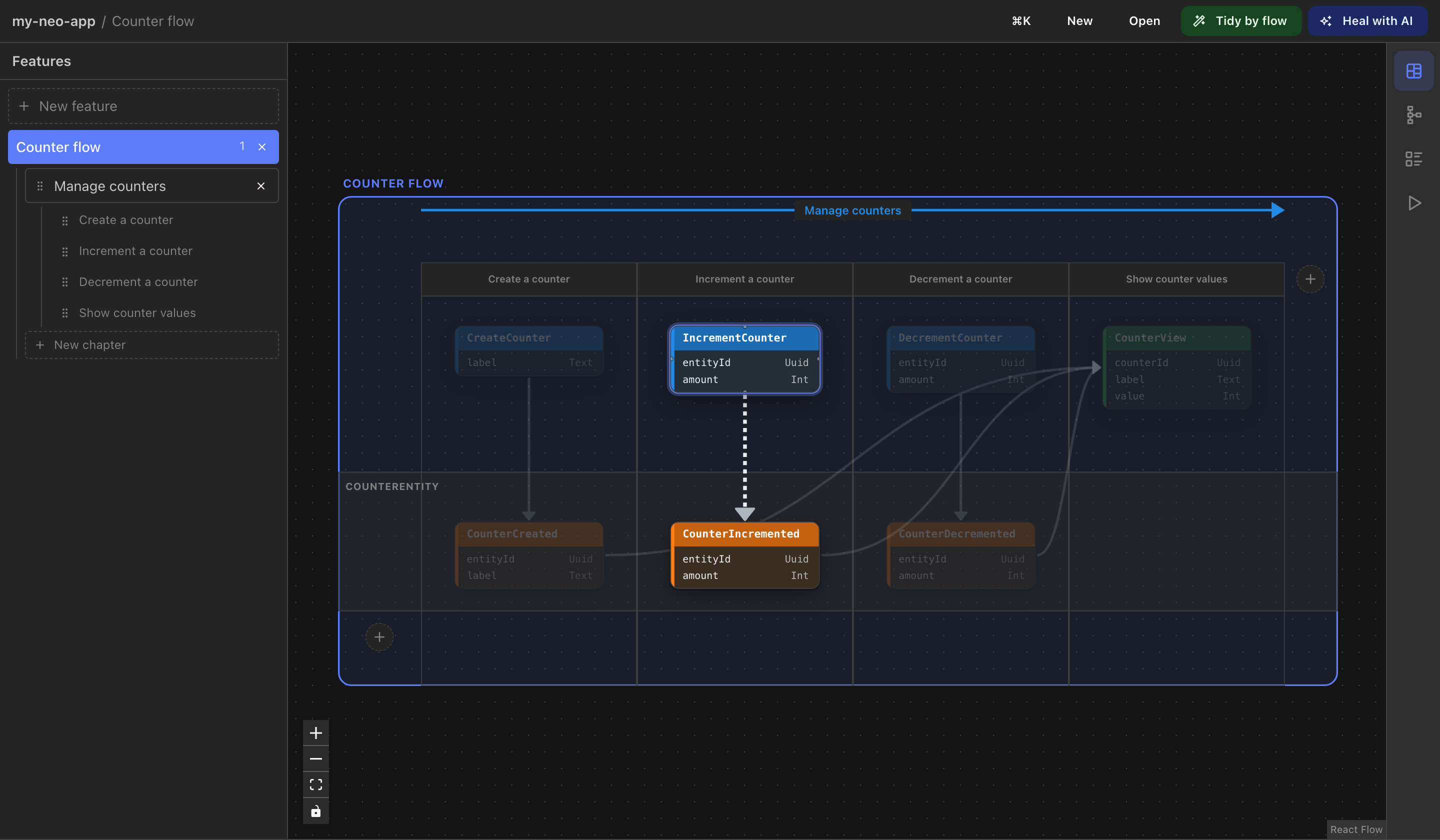
Next, select CounterIncremented to highlight its connection to CounterView. The names on the canvas tell us which source definitions to inspect. To see why zero is rejected, we need the command’s decision. Keep the diagram open beside the source, or stop its server with Ctrl+C when you’re finished.
The command and its accepted event
Section titled “The command and its accepted event”Under src/Starter/Counter/, open Commands/IncrementCounter.hs. The command carries the two fields we sent from the browser:
data IncrementCounter = IncrementCounter { entityId :: Uuid, amount :: Int}entityId selects the counter and amount says how much to add. These field names are required by the command, not freely chosen example names. In the same file, getEntityId identifies the state to load, and decide evaluates the command against it. After checking that the counter exists, the decision reaches this condition:
if cmd.amount <= 0 then Decider.reject "Amount must be positive"cmd is the command being evaluated. The condition rejects zero and negative amounts with the message we saw in the browser. This excerpt ends before the else branch, which accepts a positive amount and produces a CounterIncremented event. This is where to inspect a proposed change to which amounts are allowed.
The event’s data is defined in Events/CounterIncremented.hs in the same Counter directory:
data Event = Event { entityId :: Uuid, amount :: Int}It retains which counter changed and by how much. The nearby Event.hs groups this event with CounterCreated and CounterDecremented as the possible variants of CounterEvent. The command carries an intention; the event carries the accepted fact.
State updates and query answers
Section titled “State updates and query answers”src/Starter/Counter/Entity.hs defines CounterEntity, the state of one counter. An entity is the state a command acts on. Here, that means one counter’s identifier, label, and value, rather than the whole list of counters.
Its update function applies events to that state. The increment case is:
CounterIncremented e -> entity {value = entity.value + e.amount}e contains the event’s data. The expression keeps the entity’s other fields and adds the event’s amount to its value. Rejection never reaches this increment case because it records no increment event. To review how an accepted fact changes state, inspect update rather than the acceptance condition.
The Show counter values slice in Feature.hs lists CounterIncremented.Event with onEvent. That’s the arrow to CounterView: an accepted increment updates the query’s maintained answer. In Queries/CounterView.hs, combine takes the entity’s state and supplies the fields the browser reads:
combine entity _maybeExisting = Update CounterView { counterId = entity.counterId, label = entity.label, value = entity.value }These are the fields returned inside items by the list route and directly by the route for one identifier. The query maintains an answer from the entity’s state; reading it doesn’t run the increment decision again. A proposed change to the displayed fields belongs here.
The behavior described by tests
Section titled “The behavior described by tests”Under tests/Decider/Counter/, IncrementCounterSpec.hs checks the decision directly. Its zero-amount case constructs an increment with amount = 0, runs decide, and inspects the result:
case result of RejectCommand msg -> msg |> shouldBe "Amount must be positive" AcceptCommand _ _ -> fail "expected a rejection for a non-positive amount"The test passes only when that command is rejected with the expected reason. The same file checks a missing counter and an accepted positive amount. Notice that the condition in decide covers both zero and negative amounts, while this particular test tries zero.
Other tests follow different parts of the flow:
File under tests/ |
What it checks |
|---|---|
Property/CounterReplaySpec.hs |
Applying a creation event and generated positive increments leaves a value equal to their total. |
scenarios/counter-flow.hurl |
Through HTTP, create a counter, increment twice, decrement once, read value 1, and reject creation with an empty label. |
The replay test checks the entity’s calculation; the HTTP scenario checks several commands and a query together. Neither decides whether a proposed behavior is what your application needs. Compare the cases with your intended behavior, not only with the code an agent produced.
Application source and regenerated files
Section titled “Application source and regenerated files”Neo created both the application source and the files needed to build it. After creation, you and your agent maintain the behavior in src/ and the test cases in tests/. Project settings belong in neo.json, as described in Create a project.
Neo uses those settings, the selected framework revision, and the source files it discovers to regenerate flake.nix, cabal.project, and the project’s .cabal file. In our example, that last file is my-neo-app.cabal; its name follows the project name. Hand-written changes in these build files can be replaced during regeneration. Maintain project settings and dependency choices in neo.json, covered by neo.json and dependencies.
The IDE’s event-model.json has a different purpose. It stores the diagram, including its grouping and layout. Changing a diagram label is not an implementation of a new command decision. Review the source condition and its test when the intended behavior changes.
For a read-only inspection with your agent, you can ask:
Without changing any files, trace a zero increment through this Counter starter. Show me the rejection condition in Commands/IncrementCounter.hs, the accepted-event update in Entity.hs, and the test that checks zero is rejected. Explain how those pieces account for the unchanged query value.
Compare the answer with the small excerpts in your own files. The rejection condition and its test belong together; the entity update shows the change that rejection prevents.